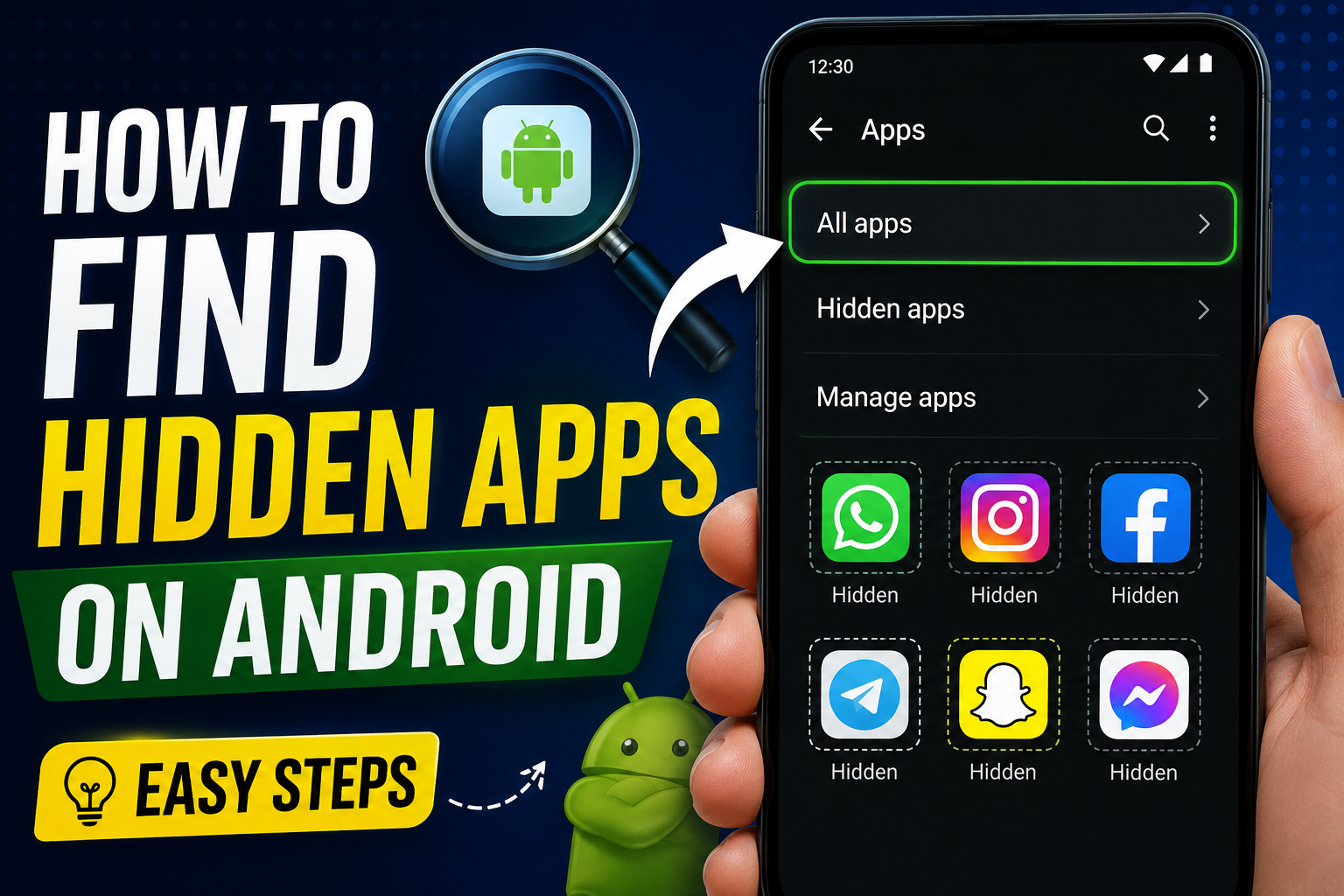
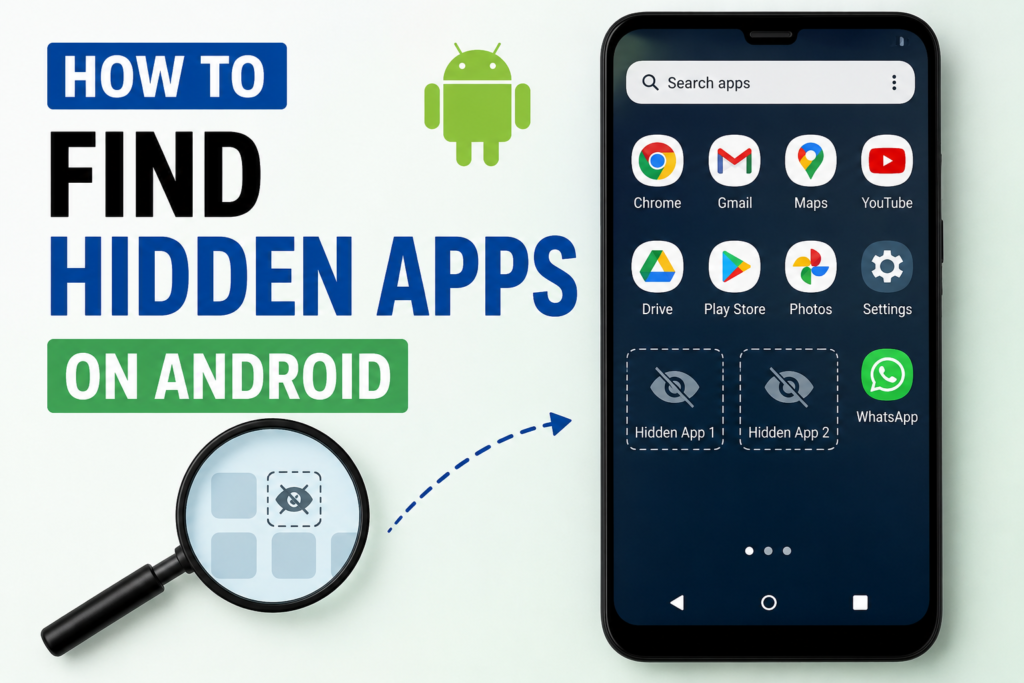
Wondering how to find hidden apps on Android? Start with Settings > Apps > See all apps. This list is more reliable than the Home screen because it shows installed apps even when their icons are removed, hidden by a launcher, or stored elsewhere.
Next, check the app drawer settings, Android Private Space, device-specific secure folders, app permissions, battery activity, and Google Play Protect.
Android menus vary by phone brand, launcher, and software version. Therefore, use the Settings search bar when a menu path looks different on your device.
Editorial note: This guide was created from official Google Android, Google Play, Samsung, and Google Search documentation. Instructions and feature availability were last checked on July 28, 2026.
What Does a Hidden App Mean?
A hidden app is not always spyware. The term can describe several different situations:
- Its Home screen shortcut was removed, but the app remains installed.
- A launcher setting hides the app from the app drawer.
- The app sits inside Private Space or a manufacturer’s secure folder.
- A disabled system app does not appear in the normal app list.
- An app uses a vague name or ordinary-looking icon to avoid attention.
Google explains that Home screens contain only some apps, while the All Apps screen provides wider access to installed software. However, Private Space can hide protected apps from common surfaces when it is locked.
Best Ways to Find Hidden Android Apps
| Method | What it may reveal | Main limitation |
|---|---|---|
| Settings app list | Most installed and disabled apps | Menu names differ by brand |
| App drawer settings | Apps hidden by the launcher | Not offered by every launcher |
| Private Space or secure folders | Apps inside protected areas | Authorized access is required |
| Permission Manager | Apps with sensitive permissions | Permission access does not prove malware |
| Battery and data usage | Apps running in the background | High usage may have a normal cause |
| Google Play Protect | Potentially harmful applications | No scanner detects every threat |
For most users, the complete Apps list in Settings is the best starting point.
How to Find Hidden Apps on Android Through Settings
Open the complete installed-app list
Follow this general path:
- Open Settings.
- Tap Apps.
- Select See all apps, Manage apps, or App management.
- Review the list alphabetically.
- Use the search icon to check a specific name.
Google’s Android guidance uses Settings > Apps, followed by See all apps when an application is not immediately visible. From the App info page, you can also inspect permissions, storage, battery use, notifications, and uninstall options.
Do not judge an app by its name alone. Services such as System UI, Carrier Services, Android System Intelligence, and manufacturer utilities may be legitimate parts of the phone.
Before deleting an unfamiliar app, search its exact name together with your phone model.
Show disabled and system apps
Some phones place system software behind a filter. On the Apps screen, open the three-dot menu or filter control. Look for options such as:
- Show system apps
- Disabled apps
- All apps
- System processes
A disabled app may disappear from the app drawer while remaining installed. Open its App info page. If the main button says Enable, the app is currently disabled.
Avoid enabling, disabling, or deleting system components unless you understand their purpose. Removing an essential service may affect calling, notifications, updates, Bluetooth, or other phone functions.
Check the App Drawer and Launcher
Swipe up from the Home screen to open the app drawer. Then enter the missing app’s name in the search box.
If the application appears in search but not in the visible list, the launcher may be hiding its icon.
Open the app drawer menu or Home screen settings and look for:
- Hide apps
- Hidden apps
- App drawer settings
- Home screen settings
- Lock apps
For Samsung Galaxy phones, Samsung currently documents this path:
Touch and hold an empty Home screen area > Settings > Hide apps on Home and Apps screens.
Apps selected in that menu can be restored to the normal app drawer.
Other brands use different wording. Search Settings for “hidden apps,” “launcher,” or “Home screen” when the option is not obvious.
Look Inside Android Private Space
Android Private Space creates a separate protected area for sensitive apps. When locked, its apps stop running, do not display notifications, and remain hidden from several common areas.
Google documents the following path:
Settings > Security & privacy > Private space
The user must authenticate before opening it.
Private Space may also appear at the bottom of the app drawer. However, its container can be hidden while locked. In that case, search for “Private space” inside Settings.
Private Space is a legitimate privacy feature. Its presence does not prove that someone is hiding malicious software or inappropriate activity.
Only inspect a protected profile on a phone you own or have clear permission to manage.
Check manufacturer-protected areas
Some brands offer additional privacy tools. Search your phone’s Settings for terms such as:
- Secure Folder
- Second Space
- Privacy password
- App Lock
- Hidden apps
- Private Safe
Feature names and availability vary by region, device model, Android version, and manufacturer software. As a result, instructions from your phone manufacturer are more dependable than a single universal menu path.
Review Permissions for Suspicious Activity
An app can remain out of sight while accessing the microphone, camera, location, contacts, SMS messages, or files.
Open:
Settings > Security & privacy > Privacy > Privacy dashboard
Choose a permission category to see which apps recently accessed it. Android’s Permission Manager also lets users review and change access by permission type.
Investigate an unfamiliar app when its permissions do not match its stated purpose. For example, a simple flashlight app should not normally need access to SMS messages or call logs.
Still, broad permissions do not automatically prove malicious behavior. Navigation, accessibility, parental-control, camera, and communication apps may need extensive access for genuine features.
Review special app access
Search Settings for Special app access. Then inspect important categories such as:
- Device admin apps
- Install unknown apps
- Display over other apps
- Notification access
- Usage access
- Accessibility
- VPN
- Modify system settings
These controls can give apps significant power. However, trusted password managers, automation tools, antivirus apps, and accessibility services may also need them.
Confirm an app’s identity before removing its access.
Check Battery, Data, and Notifications
Hidden icons do not prevent an app from using battery power or internet data.
Open Settings > Battery > Battery usage to view recent activity. You can also check the mobile-data or Wi-Fi usage section under Network settings.
Unexpected background activity deserves attention, especially when it appears alongside:
- Unusual overheating
- Rapid battery loss
- Unexplained data use
- Persistent advertisements
- Unknown accessibility services
- Microphone or camera indicators
- Settings that change without permission
However, cloud backups, photo syncing, navigation, system updates, and messaging apps can also produce temporary usage spikes.
Search Settings for Notification history as well. On supported phones, it may reveal applications that recently sent notifications, even when those alerts were dismissed.
Scan the Device With Google Play Protect
Google Play Protect checks apps from Google Play and scans devices for potentially harmful applications. It may warn the user, disable harmful software, or remove it in some situations.
To run a scan:
- Open the Google Play Store.
- Tap your profile picture.
- Select Play Protect.
- Tap Scan.
Google recommends keeping Play Protect scanning enabled. It may also check apps installed from sources outside Google Play.
A clean scan is helpful, but it is not a complete guarantee. Keep Android updated, install security patches, and avoid APK files from unknown websites.
What to Do After Finding an Unknown App
First, open the app’s App info page. Review its developer, permissions, installation source, battery use, data activity, notifications, and uninstall options.
Then follow these steps:
- Search the exact app and developer name.
- Compare it with the official Google Play listing.
- Revoke permissions that do not match its purpose.
- Remove device-admin or accessibility access if required.
- Uninstall the app after confirming it is unwanted.
- Run another Play Protect scan.
- Update Android and all remaining apps.
- Change important passwords if account theft is suspected.
Use a trusted phone or computer to change passwords when you believe the Android device may be monitored.
Do not factory-reset the phone as your first action. A reset removes local data and most user-installed software, but it may also destroy useful evidence. Back up important photos, contacts, and documents before resetting.
If the phone belongs to a company or school, unfamiliar software may be required device-management software. Contact the administrator before removing it.
Mistakes to Avoid
Do not assume that every app missing from the Home screen is secretly hidden. Home screen icons are shortcuts. Removing a shortcut does not necessarily uninstall the application.
Also, avoid downloading random “hidden app detector” tools. Some request broad permissions and may create more privacy concerns than they solve.
Start with Android’s built-in app list, Privacy Dashboard, usage screens, special-access settings, and Play Protect.
Finally, do not search another adult’s phone without consent. Device-security guidance should protect users, not support secret surveillance.
ALSO READ: Tech Town BeaconSoft What It Really Means
Conclusion
The most reliable way to find hidden apps is to combine several checks. Start with Settings > Apps > See all apps. Next, inspect the launcher’s hidden-app options, Private Space, manufacturer secure folders, permissions, battery activity, and special access.
Afterward, scan the device with Play Protect and verify any unfamiliar developer before uninstalling the app.
An unknown application is a reason to investigate. However, it is not automatic proof of spyware or harmful activity. Careful verification reduces the risk of deleting software that Android needs.
FAQs
Can an app be installed without appearing on the Home screen?
Yes. Installing an app does not always create a Home screen shortcut. The application may still appear in the app drawer and under Settings > Apps.
Does Android have one hidden-app list?
No single list covers every Android phone. Launcher settings, Private Space, disabled-app filters, and manufacturer privacy features can hide apps in different ways.
Can hidden apps still send notifications?
Apps hidden only by a launcher can usually continue running and sending notifications. Apps inside locked Android Private Space stop running and do not display notifications until the space is unlocked.
How can I tell whether a hidden app is spyware?
No single sign proves that an app is spyware. Check its developer, installation source, permissions, accessibility access, administrator privileges, battery activity, network usage, and Play Protect results.
Will a factory reset remove hidden apps?
A standard factory reset normally removes user-installed applications and local data. However, backups may restore apps later, while workplace-management systems may reinstall required software.
For more updates visit: Tum Bons