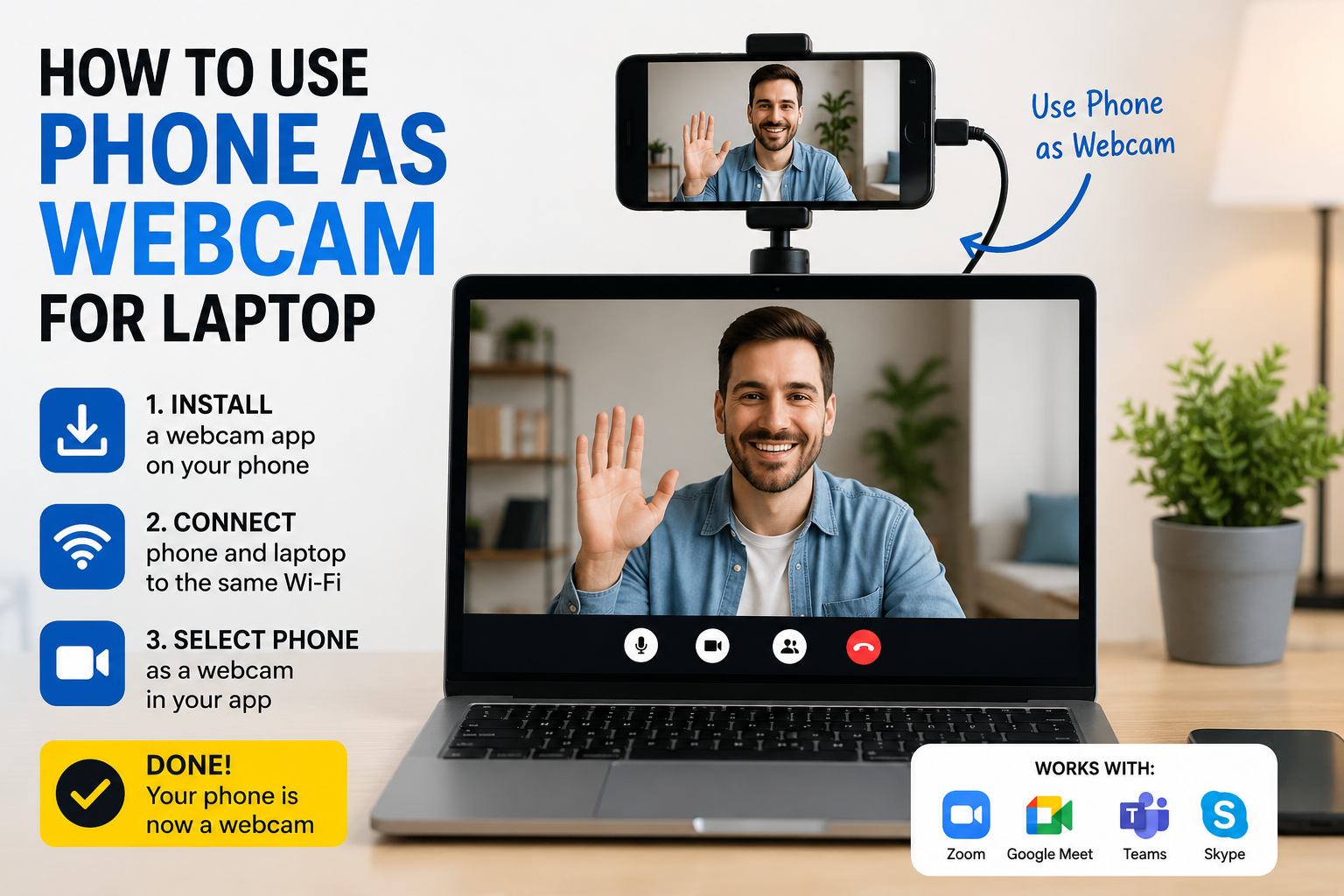
Learning how to use phone as webcam for laptop can quickly improve your video calls, online classes, interviews, and live streams. Modern smartphone cameras often produce a sharper picture than the small camera built into a laptop.
The best setup depends on your devices. Windows 11 can use a linked Android phone as a wireless camera. Some Android phones also support a direct USB webcam mode. Meanwhile, Mac users can connect a compatible iPhone through Apple’s Continuity Camera.
This guide explains each method, shows you how to choose the right option, and helps you fix common connection problems.
Can You Use a Phone as a Laptop Webcam?
Yes. You can turn many Android phones and iPhones into laptop webcams through one of three methods:
- A built-in wireless connection
- A direct USB webcam connection
- A trusted third-party webcam application
Native features usually offer the simplest and safest experience because they require less additional software. However, compatibility depends on the phone model, operating system, laptop, and available updates.
For example, Microsoft officially supports linked Android phones as webcams on Windows 11. The feature requires Android 10 or later and a recent version of the Link to Windows app.
Android also includes a platform-level USB webcam feature for supported devices running Android 14 QPR1 or later. These phones appear to the laptop as standard USB Video Class, or UVC, cameras. However, manufacturers decide whether to enable the feature on individual models.
Apple’s Continuity Camera lets supported iPhones work as webcams for Macs running macOS Ventura 13 or later.
Choose the Best Connection Method
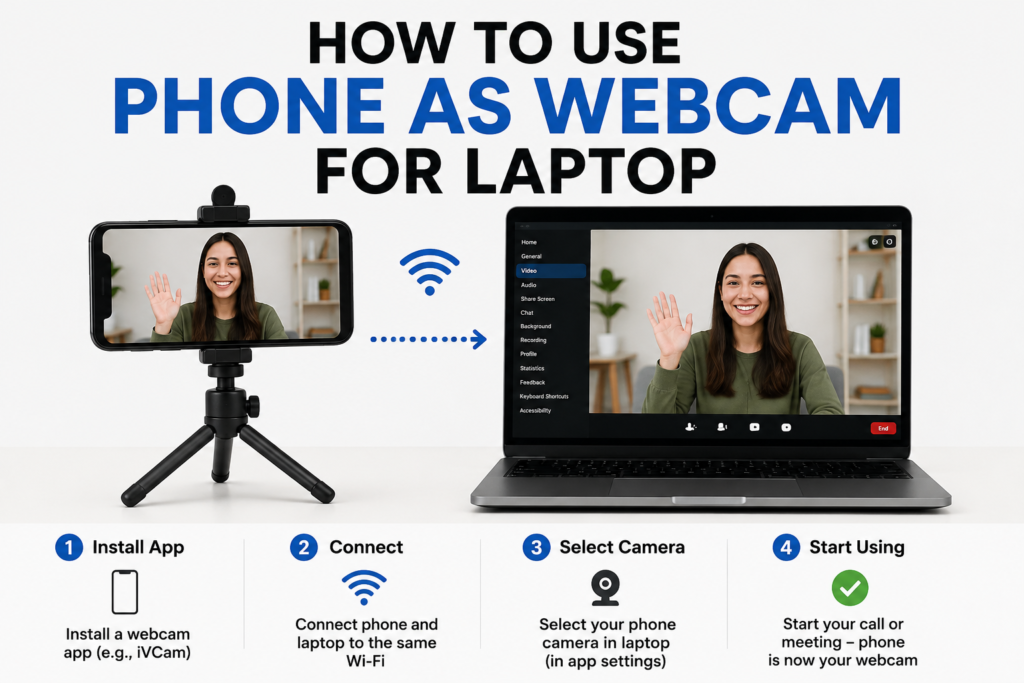
The following comparison can help you select the most practical setup.
| Method | Best for | Connection | Main requirement | Key limitation |
|---|---|---|---|---|
| Android with Windows 11 | Everyday calls and meetings | Wireless | Android 10+, Windows 11 and Link to Windows | Not available for Windows 10 |
| Android USB webcam mode | Stable video and broad laptop support | USB cable | A phone with USB webcam support | Not every Android manufacturer enables it |
| iPhone Continuity Camera | iPhone and Mac users | Wireless or USB | iOS 16+, macOS Ventura 13+ | Does not provide the same native experience on Windows |
| Third-party webcam app | Older or unsupported combinations | Wi-Fi or USB | Software on both devices | Quality, privacy and free-plan limits vary |
A USB setup is generally more stable because it does not depend on local wireless conditions. It may also charge the phone during use. Wireless mode is more convenient, although signal congestion can cause delay, dropped frames, or reduced image quality.
How to Use Phone as Webcam for Laptop on Windows 11
Microsoft’s connected-camera feature is the easiest native choice for many Windows and Android users.
Check the requirements
You need:
- A laptop running Windows 11 or later
- An Android phone running Android 10 or later
- Link to Windows version 1.24022.0 or later
- A Microsoft account
- Wi-Fi and Bluetooth enabled when requested
Update Windows, Phone Link, and Link to Windows before starting. Older software may not display the required camera setting.
Link your Android phone
- Open Settings on the Windows laptop.
- Select Bluetooth & devices.
- Open Mobile devices.
- Select Manage devices.
- Choose Add device if your phone is not already linked.
- Scan the displayed QR code with your Android phone.
- Follow the prompts and grant the requested permissions.
After pairing the devices, return to the Manage devices page.
Enable the connected camera
Find your linked phone and turn on Use as connected camera. Microsoft states that this option makes the mobile camera available to Windows applications as a webcam.
Next, open Zoom, Microsoft Teams, Google Meet, OBS Studio, or another camera application. Enter its video settings and select your phone from the camera list.
The exact camera name may vary. Therefore, look for the model name of your phone or a label connected with Windows Virtual Camera or Mobile Device.
Your phone may ask for camera permission when the computer begins using it. Approve the request to start the feed.
Use an Android Phone as a USB Webcam
A direct USB connection is often the best answer when someone asks how to use phone as webcam for laptop without relying on Wi-Fi.
Confirm that your phone supports webcam mode
Android’s system supports Device as Webcam from Android 14 QPR1 onward. However, having Android 14 or a newer release does not guarantee that the option appears. The phone manufacturer must include and enable the feature.
Google Pixel phones with supported software provide a straightforward version of this feature. Google says the phone works with hosts that support the UVC standard, including Windows, macOS, Linux, and ChromeOS devices.
Connect the phone by USB
- Use a USB cable that supports data transfer.
- Connect the phone to the laptop.
- Unlock the phone.
- Tap the notification that says the device is charging through USB.
- Open the Use USB for menu.
- Select Webcam.
- Tap the webcam notification to preview or adjust the image.
- Open your meeting or recording software.
- Select the Android phone from the camera menu.
A charging-only cable will not work. Replace the cable if the laptop charges the phone but never detects a new camera.
Google also notes that a Pixel can continue charging during webcam mode. The feed may pause temporarily when another phone application needs camera access.
How to Use an iPhone as a Webcam for a Mac
Apple’s built-in method is called Continuity Camera. It works wirelessly, although you can connect the iPhone by USB when you prefer a wired setup.
Check Apple’s requirements
Apple lists these core requirements:
- An iPhone XR or newer
- iOS 16 or later
- A Mac running macOS Ventura 13 or later
- Both devices signed in to the same Apple Account
- Two-factor authentication enabled
- Bluetooth and Wi-Fi turned on
- Continuity Camera enabled on the iPhone
The iPhone and Mac should remain near each other. Neither device should be sharing its internet connection during wireless use.
Set up Continuity Camera
- On the iPhone, open Settings.
- Select General.
- Open AirPlay & Continuity.
- Turn on Continuity Camera.
- Mount the iPhone securely with its rear camera facing you.
- Open FaceTime, Zoom, Teams, or another supported Mac application.
- Open the app’s camera menu.
- Select your iPhone.
Apple recommends placing the phone in a stable position. Its support guidance says the device should remain within 30 feet of the Mac for wireless use.
The rear camera usually delivers better quality than the front camera. In addition, supported models and applications may offer effects such as Center Stage, Portrait mode, Studio Light, and Desk View. Availability varies by device and software version.
What About iPhone on Windows or Older Android Phones?
Native compatibility is less consistent for iPhone-to-Windows setups, Windows 10 laptops, and Android phones without webcam mode. In those cases, a third-party app may provide the missing connection.
These tools normally require:
- A mobile application on the phone
- Companion software on the laptop
- A USB or local Wi-Fi connection
- Camera and microphone permissions
- Selection of the app’s virtual camera inside the meeting program
Before installing any webcam tool, check its developer, privacy policy, update history, supported operating systems, and current pricing. Avoid unofficial installation files from download sites. Instead, use the developer’s official website and your phone’s authorized app store.
Free versions may include watermarks, lower resolution, limited controls, or restricted connection modes. Since these terms can change, review the current product page rather than relying on an old comparison.
Improve Your Phone Webcam Quality
Knowing how to use phone as webcam for laptop is only part of the process. Positioning, lighting, sound, and power can make a larger difference than resolution alone.
Use the rear camera
The main rear camera usually has a larger sensor and better image processing. However, you will need to frame the shot before sitting down. Use the app preview or ask another person to check the composition.
Place the lens at eye level
Mount the phone above or beside the laptop screen. A low camera angle can look unnatural, while a phone placed too far from the screen makes eye contact difficult.
Use a stable stand or clamp. Do not balance an expensive phone against books or the laptop lid.
Face a soft light source
Sit facing a window or lamp rather than placing strong light behind you. Backlighting can turn your face into a dark silhouette.
Clean the camera lens as well. Fingerprints often create haze and glare that users mistakenly blame on software.
Choose the microphone separately
Your laptop may still use its internal microphone even after you select the phone as the camera. Open the audio settings and choose the preferred microphone manually.
For important interviews or recordings, headphones or a dedicated USB microphone can reduce echo and room noise.
Control heat and battery use
Long video sessions can warm the phone, especially when it sends high-resolution video while charging. Remove a thick case when safe, keep the device out of direct sunlight, and avoid covering its cooling surfaces.
Stop the session if the phone displays a temperature warning.
Common Problems and Fixes
The phone does not appear in the camera list
Close and reopen the meeting application after connecting the phone. Some programs only scan for available cameras when they start.
Also confirm that another application is not already using the camera.
Windows does not show “Use as connected camera”
Verify that the laptop runs Windows 11, the phone runs Android 10 or later, and Link to Windows is updated. Then remove and reconnect the device if the setting remains unavailable. Microsoft’s feature requirements do not list Windows 10 as supported.
Android does not show a Webcam USB option
Try another data-capable cable and USB port. Then update the phone.
If the option still does not appear, the manufacturer may not support Android’s webcam implementation on that model. Android version alone is not sufficient.
The video application shows a black screen
Check camera permissions in Windows, macOS, or the browser. For Google Meet on Windows, camera access must be enabled under Settings > Privacy & security > Camera. The browser also needs permission to access the selected camera.
Wireless video freezes or lags
Move the phone and laptop closer to the router. Pause large downloads and disconnect from a congested network where possible.
For an important call or recording, switch to USB if your setup supports it.
Privacy and Safety Considerations
Only grant camera access to applications you recognize. Remove permissions when you no longer use a third-party webcam tool.
In addition:
- Keep the phone and laptop software updated.
- Use a trusted home or office network.
- Avoid unknown public Wi-Fi for sensitive meetings.
- Close private notifications before sharing screens.
- Confirm that recording is permitted before recording participants.
- Disconnect the camera after the session.
A phone webcam can capture more detail than an older laptop camera. Therefore, check the full background for documents, screens, addresses, or personal items before joining.
ALSO READ: Droven.io AI Career Roadmap A Practical 2026 Guide
Conclusion
The best method depends on your laptop and phone. Windows 11 users can connect a compatible Android phone through Microsoft’s Mobile devices settings. Supported Android phones can also provide a reliable USB webcam connection. For Mac users, an eligible iPhone and Continuity Camera offer the most seamless native setup.
Start with a built-in feature because it reduces software and privacy concerns. Then use a reputable third-party application only when your device combination lacks native support. Finally, improve the result with stable mounting, front lighting, a clean lens, and the correct microphone.
FAQs
Can I use my phone as a webcam without installing an app?
Yes. Windows 11 has a native connected-camera option for linked Android devices. Supported Android phones can offer USB webcam mode, while compatible iPhones and Macs can use Continuity Camera.
Can I connect my phone webcam using only a USB cable?
Yes, provided the Android phone supports USB webcam mode. You also need a data-capable cable. An iPhone can connect to a Mac by USB through Continuity Camera.
Why does my laptop charge the phone but not detect its camera?
The cable may support charging without data transfer. Try another cable, unlock the phone, open its USB settings, and select Webcam when that option is available.
Can I use my phone’s microphone with the camera?
Some connection methods can expose the phone microphone, but application behavior varies. Check the meeting program’s audio settings and select your microphone separately.
Is a phone better than a laptop webcam?
It can provide a sharper image, better dynamic range, and improved low-light performance. However, results also depend on lighting, mounting, connection stability, heat, and software processing.
Can I use the phone camera in Zoom, Teams, or Google Meet?
Usually, yes. Once the laptop recognizes the phone as a camera, select it in the application’s video settings. Compatibility can vary with older software and third-party webcam tools.
For more updates visit: Tum Bons