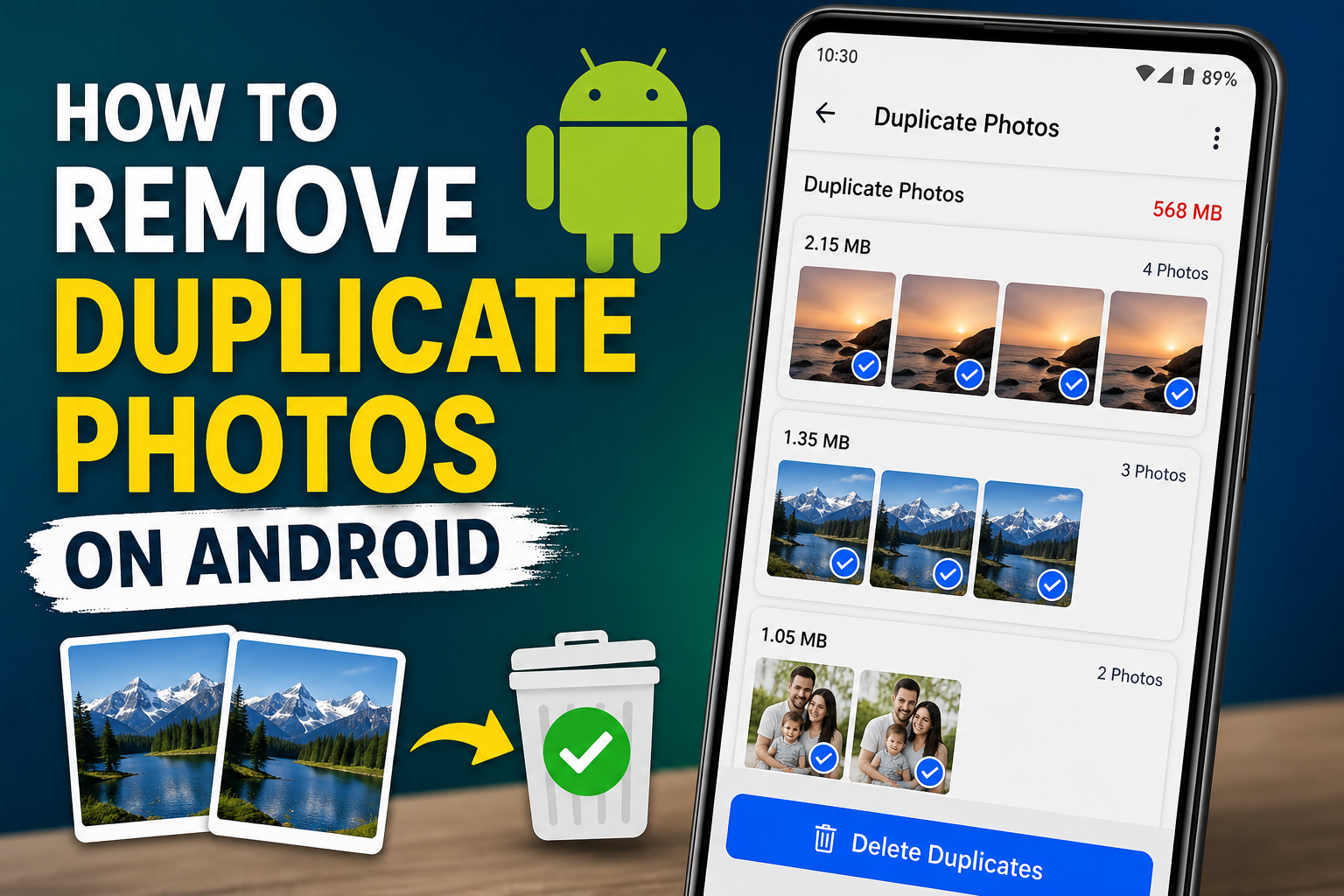
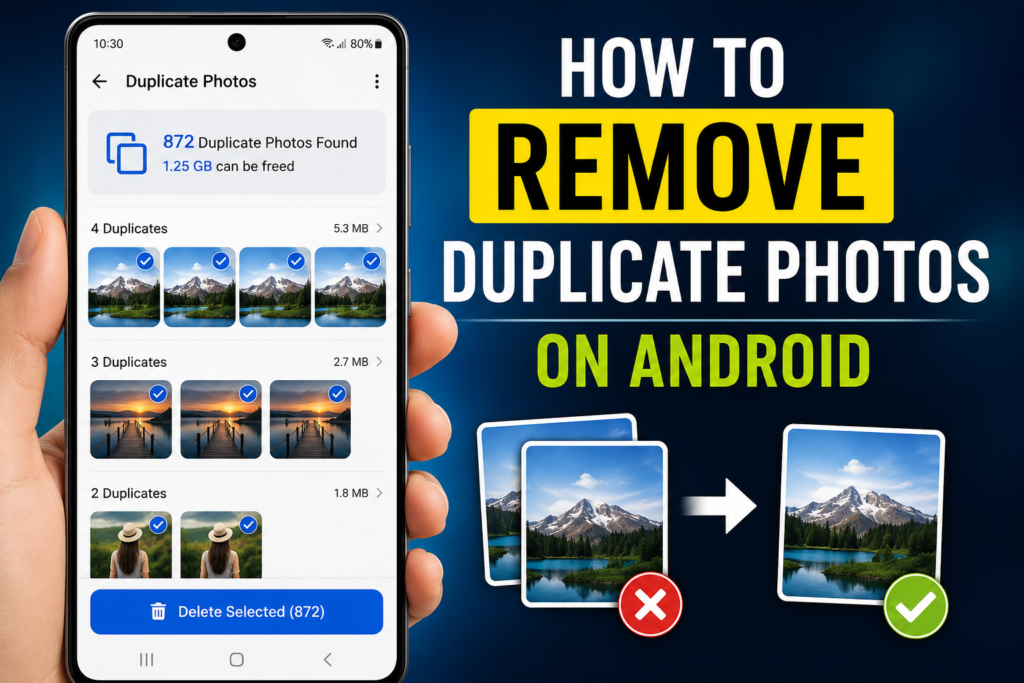
Learning how to remove duplicate photos on Android can free storage and make albums easier to manage. The safest method is to scan local storage with Files by Google, review each group, keep the file marked “Original,” and move only extra copies to Trash. Samsung tools and Google Photos can handle other cases.
Editorial method: This guide compares current Google and Samsung support documentation with common Android cleanup problems. It exists to help readers delete duplicates without losing valuable images. Instructions and retention periods were last checked on July 29, 2026. Menu names may vary by device, region, and app version.
Check Your Backup Before Removing Anything
If you are learning how to remove duplicate photos on Android safely, first confirm that important pictures exist in another location. You can use Google Photos, another trusted cloud service, a computer, or an external drive. However, a thumbnail does not prove that the full file finished uploading. Open several recent images and verify their backup status.
Next, separate exact duplicates from similar photos. Exact duplicates usually contain the same image data, even when they sit in different folders. Similar images may be burst shots, edited versions, compressed messaging copies, or repeated selfies. An exact-file cleaner may miss those near-identical pictures.
Also, seeing an image in both Gallery and Google Photos does not automatically mean two copies exist. Open the image details and compare the path, filename, dimensions, and file size.
How to Remove Duplicate Photos on Android With Files
For most phones, Files by Google offers the simplest option. Google’s official instructions say the app can find duplicate files and mark one copy with an “Original” badge. Google recommends keeping that original.
- Open Files by Google.
- Tap the menu, then choose Clean.
- Find the Duplicate files card.
- Tap Select files.
- Review every duplicate group.
- Keep the item marked Original.
- Select only the extra copies.
- Tap Move files to Trash and confirm.
This is usually the quickest way to remove duplicate photos on Android when the copies are stored locally. It may also detect copied videos, documents, or downloads. However, it may not flag pictures with different crops, edits, resolutions, or compression.
Afterward, inspect Trash before emptying it. A lower-resolution chat copy can look like the camera original on a small screen but hold less detail.
Compare the Best Cleanup Methods
| Method | Best for | Advantage | Limitation |
|---|---|---|---|
| Files by Google | Exact local duplicates | Free and marks an original | May miss similar images |
| Samsung My Files | Duplicate files on Galaxy phones | Built into many devices | “Select all” may include the original |
| Samsung Gallery | Visually reviewed Gallery copies | Easy preview | Availability varies |
| Google Photos Photo Stacks | Similar shots taken close together | Suggests a top pick | Stacking alone saves no space |
| Manual review | Edited or renamed copies | Full control | Slow for large libraries |
| Third-party cleaner | Similarity matching at scale | Can scan large libraries | Requires privacy checks |
Start with Files by Google or your phone maker’s tool. Then use Photo Stacks or manual review for burst shots and near-duplicates.
How to Remove Duplicate Photos on Android Samsung Phones
Samsung supports two useful routes on many Galaxy devices. In My Files, open Analyze storage, select Duplicate files, review the groups, and tap Delete. Samsung warns that selecting every item can delete the original too. Therefore, avoid blind bulk deletion.
Some Galaxy phones also include a Gallery option. Open Gallery, tap the menu, choose Clean out, and look for Delete duplicate pictures. Samsung says the option may not appear when Gallery has found no duplicates.
The wording can change between One UI versions and regions. Update Gallery and My Files before deciding that your phone lacks the feature.
Use Google Photos for Similar Shots
If you are learning how to remove duplicate photos on Android with Google Photos, understand its limits first. As of July 29, 2026, Google Photos does not provide a general tool that scans an entire cloud library and deletes every duplicate. Current Google Photos Help Community answers still recommend manual removal for existing cloud duplicates.
However, Photo Stacks can group nearly identical photos of the same subject taken within a short period. Google Photos suggests a top pick and offers a Keep this, delete rest action. Merely enabling stacks does not reduce storage; you must delete unwanted items.
Review a Photo Stack Safely
- Turn on Stack similar photos in Google Photos.
- Open a stack.
- Compare focus, faces, motion blur, and framing.
- Choose the strongest image as the top pick.
- Use Keep this, delete rest only after checking every item.
Photo Stacks work well for bursts and repeated shots. Files by Google works better for copied files in separate folders. Using both tools covers more cases.
For older cloud duplicates that are not stacked, search by date, person, place, or event. Compare resolution, capture date, metadata, and edits before deleting a copy.
Check These Details Before Deleting
A careful review protects image quality and useful metadata. Compare:
- Resolution: Keep the version with more pixels unless the smaller copy serves a purpose.
- File size: A much smaller image may be compressed.
- Date: Prefer the file with the correct capture date.
- Folder: Camera originals commonly appear in DCIM/Camera.
- Edits: Check for crops, filters, markup, or restoration work.
- Backup status: Confirm the preferred version is safely stored.
- Format: One item may be RAW, panorama, portrait, or a motion photo.
When uncertain, keep both temporarily. You can recover storage later, but you may not recover a permanently deleted memory.
Know What Deletion Does
Google says a backed-up photo deleted from Google Photos stays in Trash for 60 days. On Android 11 or later, an unbacked-up item deleted through Google Photos generally remains there for 30 days. Deleting a backed-up item can also remove it from Android devices where Google Photos backup is enabled.
Therefore, inspect Trash before emptying it. If you need storage immediately, empty it only after verifying the photos you kept.
The Google Photos Free up space feature solves another problem. It removes local copies that are already backed up while leaving them available in Google Photos. It does not serve as a general duplicate-photo scanner.
Stop Duplicate Photos From Returning
Duplicates often return because the copying source remains active. Common causes include restoring media during a phone transfer, downloading the same attachment again, copying folders during migration, exporting edits, and storing repeated media in several device folders.
To prevent repeat clutter:
- Review which device folders Google Photos backs up.
- Disable backup for folders you do not need online.
- Avoid copying the same camera or messaging folder during every migration.
- Use “Save a copy” only when you need both versions.
- Run a scan after restoring a backup or changing phones.
Google Photos lets Android users select device folders under Photos settings > Backup > Back up device folders.
Be Careful With Third-Party Cleaners
When deciding how to remove duplicate photos on Android with a third-party app, protect your privacy first. A cleaner may help with thousands of visually similar pictures. Still, photo access is sensitive. Avoid cleaners that delete without previews, request unrelated permissions, or hide core controls behind unclear subscriptions.
Check the developer, update history, recent reviews, privacy policy, and Google Play Data safety section. Google says this section describes how developers handle collection, sharing, security, and deletion. Since developers supply those disclosures, treat them as one part of your review.
Prefer local scanning, side-by-side previews, folder exclusions, and an option that leaves one photo unselected. Test the app on a small folder first.
Troubleshooting
The Duplicate Files Card Is Missing
Update Files by Google, allow the required permissions, restart the phone, and let storage indexing finish. The card may remain hidden when the app finds no matching duplicate files.
Similar Images Were Not Detected
Use Photo Stacks, Samsung Gallery cleanup, or a carefully reviewed similarity scanner. Files with different edits or compression may not count as exact duplicates.
Deleted Photos Came Back
Check whether a restored backup, synced folder, or messaging app downloaded the file again. Compare the new file’s path with the old path.
Storage Did Not Increase
The files may still be in Trash. Check Files by Google, Google Photos, and your Gallery trash. Empty them only after confirming the correct copies remain.
ALSO READ: Social Media Stuff EmbedTree A Smarter Way to Organize Your Online Presence
Conclusion
The safest way to remove duplicate photos on Android combines a verified backup, an exact-file scan, and a visual review. Use Files by Google for local copies, Samsung tools on Galaxy devices, and Photo Stacks for similar shots. Always compare quality, folder location, and backup status before permanent deletion.
FAQs
Does Google Photos Automatically Delete Duplicates?
No. It can group similar recent shots into Photo Stacks, but it has no universal automatic duplicate remover for the full cloud library. You must review stacks or remove existing duplicates manually.
Can I Remove Duplicates Without Another App?
Yes. Samsung phones may include tools in My Files or Gallery. Other users can manually compare paths, dates, dimensions, and file sizes with their existing file manager.
Is Files by Google Safe for Cleanup?
It is an official Google app and marks one matching file as “Original.” Still, review every group and inspect Trash before permanent deletion.
Will Google Photos Deletion Affect My Phone?
It can. Deleting a backed-up item may remove it from synced Android devices. Check backup status and Trash before deleting important media.
How to Remove Duplicate Photos on Android Safely?
Back up important images, use Files by Google for exact local duplicates, keep the item marked “Original,” and review Trash. Then use Photo Stacks or manual comparison for similar images that are not exact copies.
For more updates visit: Tum Bons