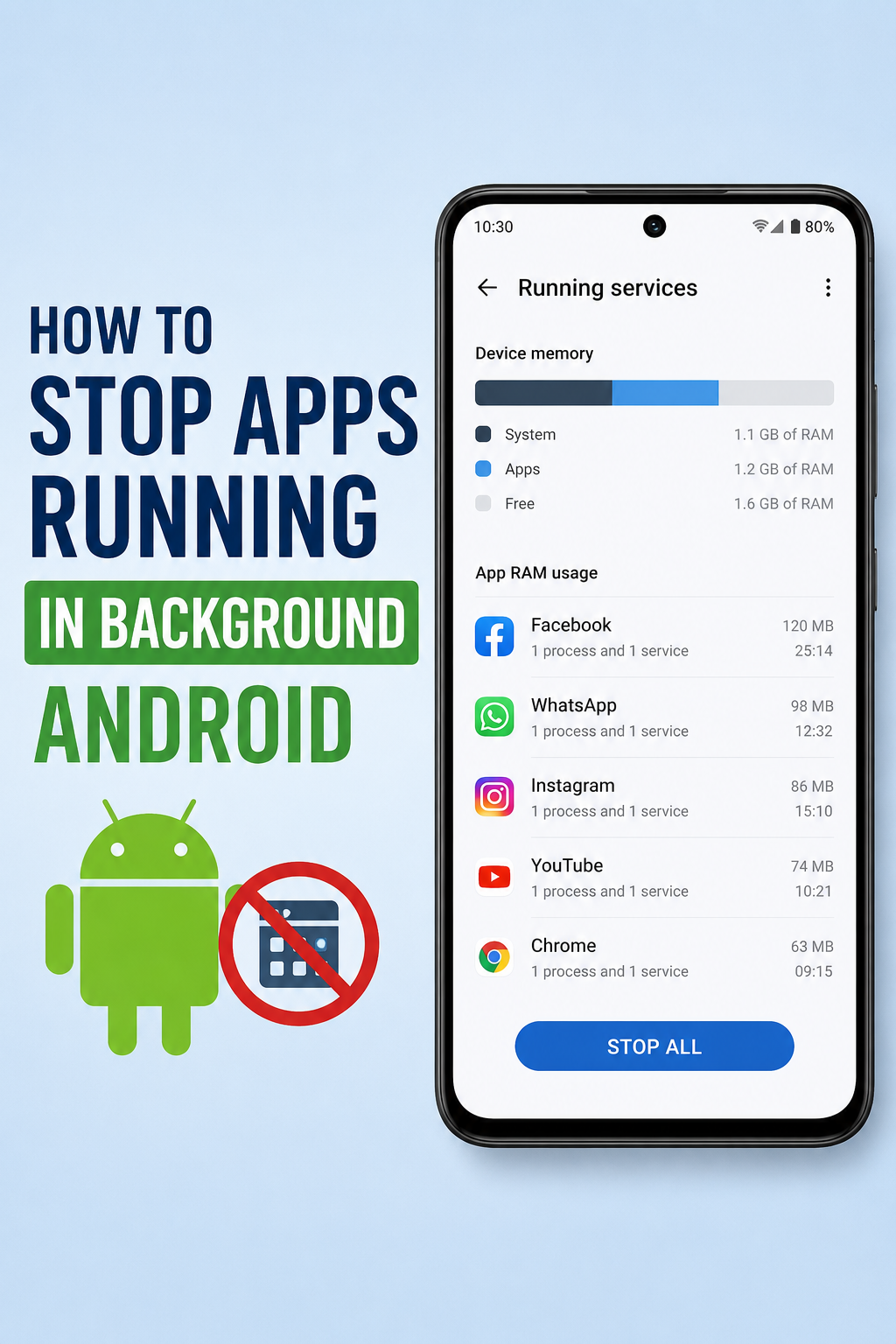
Learning how to stop apps running in background Android devices can reduce unwanted battery drain, mobile data use, overheating, and unnecessary notifications. However, repeatedly swiping away every recent app is rarely the best solution.
Android already limits background activity through battery optimization and system-level restrictions. Therefore, the safest approach is to identify the problem app first. You can then restrict its battery access, block background data, remove unnecessary permissions, force stop it, or uninstall it.
The exact menu names differ between Google Pixel, Samsung Galaxy, Xiaomi, OnePlus, Motorola, and other Android phones. Still, the main controls work in similar ways.
Quick Answer: Stop an Android App in the Background
To restrict a specific app:
- Open Settings.
- Tap Apps or Apps & notifications.
- Select See all apps if needed.
- Choose the problem app.
- Tap App battery usage, Battery, or Battery activity.
- Select Restricted or disable Allow background usage.
On many Pixel phones, Google recommends leaving most applications set to Optimized. Use the restricted setting only for apps that consume too much power or do not need timely notifications.
First, Check Which Apps Use the Most Battery
Do not restrict applications at random. Instead, check your phone’s battery report so you can identify unusual activity.
On a typical Android or Pixel phone:
- Open Settings.
- Select Battery.
- Tap Battery usage.
- Choose View by apps if that option appears.
- Review the percentage and background activity for each application.
An app near the top of the list is not always a problem. For example, navigation, video streaming, gaming, and camera apps naturally consume more power while you use them. Focus on apps showing high battery use even though you barely opened them.
You should also check activity over a full day rather than judging an app after only a few minutes. Recent installation, account syncing, photo backups, app updates, and file downloads can temporarily increase background use.
How to Stop Apps Running in Background Android Settings
Android offers several controls, but they do different jobs. Restricting battery activity is usually the best first step.
Restrict Background Battery Usage
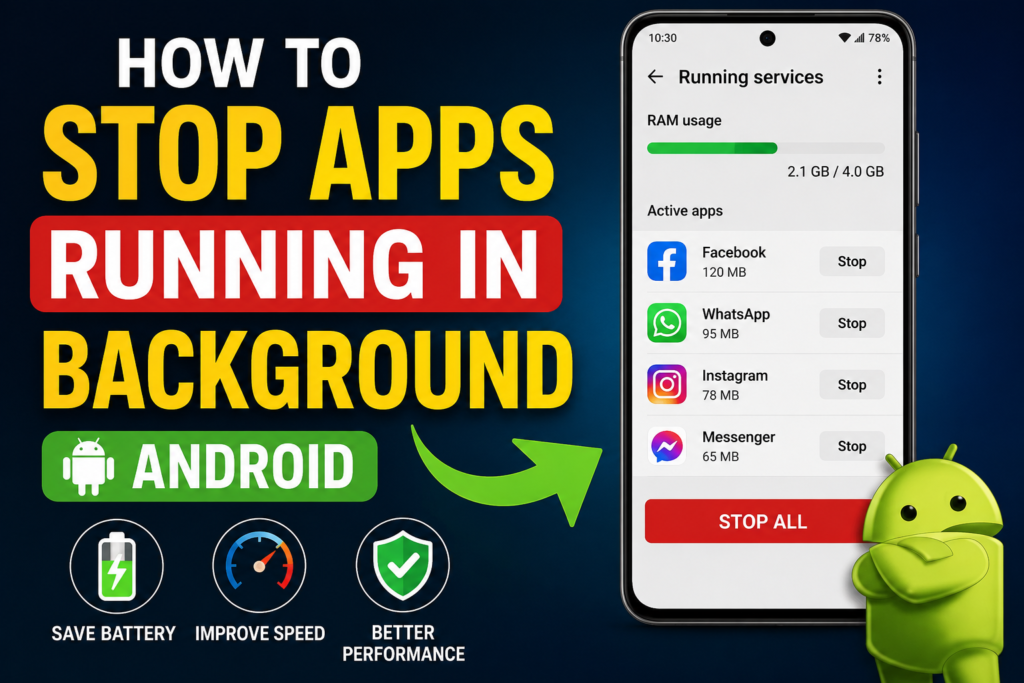
Use this method when an app drains power, wakes the phone frequently, or remains active without a clear reason.
The usual path is:
Settings → Apps → Select the app → Battery or App battery usage
You may see one or more of these options:
| Setting | What it does | Best use |
|---|---|---|
| Unrestricted | Allows more background activity | Messaging, fitness trackers, alarms or essential syncing |
| Optimized | Lets Android manage activity automatically | Recommended for most applications |
| Restricted | Strongly limits background work | Rarely used apps or apps causing battery drain |
| Allow background usage | Turns background battery access on or off | Available on some Android versions and brands |
Google explains that Adaptive Battery learns how you use applications and may delay less-important background work. It may also delay some notifications. Turning off optimization allows an app to run more often and may increase battery consumption.
After applying a restriction, test the phone for several hours. Watch for missing messages, delayed uploads, broken widgets, or failed synchronization.
Use Force Stop for a Frozen or Misbehaving App
Force stop immediately ends an app’s current processes.
To use it:
- Open Settings.
- Tap Apps.
- Choose See all apps.
- Select the application.
- Tap Force stop.
- Confirm the action.
Google recommends force stopping an application when it is not working correctly. However, the company warns that force stopping essential applications or services can affect phone operation. The control is also unavailable for some system components.
Force stop is temporary. The app may start again when you open it, restart the phone, receive a related notification, or trigger a scheduled task. Therefore, use battery restrictions or uninstalling for a longer-term solution.
Swipe Away an App From Recent Apps
You can remove an application from the recent-apps screen:
- Swipe up from the bottom and hold.
- Find the app.
- Swipe its preview upward.
Phones with three-button navigation may have a square or recent-apps button instead. Android also provides a Clear all option on many devices.
Nevertheless, clearing recent apps does not always stop every background service. It mainly removes the app from the recent screen and closes its visible task.
Google states that users do not usually need to close apps manually. Android manages memory automatically, so constant app clearing may provide little benefit during normal use.
Block an App From Using Background Mobile Data
Battery access and data access are separate controls. An app may use mobile data in the background even when you are not viewing it.
The path often looks like this:
Settings → Network & internet or Connections → Data usage → Mobile data usage → Select app
Depending on your phone, turn off:
- Background data
- Allow background data usage
- Unrestricted data usage
Restricting data can help when a social media, cloud storage, streaming, or news app uses too much of your mobile plan. However, the app may stop refreshing until you open it.
Messages, email, file backups, weather information, and other synced content may also arrive late. Therefore, avoid blocking background data for services that must remain current.
Google’s Android and Play documentation confirms that background data and unrestricted access can be controlled through network and Data Saver settings, although the menu wording varies by Android version.
Turn On Adaptive Battery and Battery Saver
Adaptive Battery is a better starting point than manually restricting every application.
On a Pixel phone, the usual path is:
Settings → Battery → Battery Saver → Adaptive Battery
Turn on Use Adaptive Battery. Google says this feature learns from phone usage and limits less-important background work. As a result, some notifications may be delayed.
Battery Saver applies broader limits when you need longer battery life. It can reduce background activity and change certain performance or connectivity behavior. Pixel phones also offer Extreme Battery Saver for stronger limits.
Use regular Battery Saver when:
- Your battery is low.
- You are travelling without a charger.
- The phone loses power quickly during standby.
- You need essential functions to last longer.
Avoid leaving the strongest battery-saving mode enabled when you need real-time messaging, navigation updates, wearable syncing, or immediate email delivery.
Samsung Galaxy: Use Sleeping and Deep Sleeping Apps
Samsung Galaxy devices provide additional background controls under Battery and device care.
Depending on the One UI version, open:
Settings → Battery and device care → Battery → Background usage limits
Samsung phones may offer:
- Sleeping apps: These applications run in the background less often.
- Deep sleeping apps: These applications generally work only when opened.
- Never auto sleeping apps: These applications remain available for background tasks.
Deep sleeping can suit games, shopping apps, editors, or tools you rarely use. However, it is a poor choice for messaging, alarms, smart-home controls, VPNs, wearable apps, or services that must sync continuously.
Samsung changes menu labels across One UI versions and device models. Therefore, search for “background usage limits” or “sleeping apps” inside Settings when the path does not match your phone.
Remove Permissions an App Does Not Need
Some background behavior depends on permissions such as location, microphone, nearby devices, physical activity, or notifications.
To review them:
- Open Settings.
- Tap Security & privacy or Privacy.
- Select Permission manager.
- Choose a permission category.
- Select the app and change its access.
Android also offers Pause app activity if unused for supported applications. This option can remove permissions and pause activity when you have not opened the app for a long period.
Choose Allow only while using the app for location, camera, or microphone access unless the application genuinely needs continuous access. For instance, a navigation app may need location during a trip, while a basic photo editor normally does not need permanent location access.
When You Should Not Restrict Background Activity
Knowing how to stop apps running in background Android phones is useful, but aggressive restrictions can break important features.
Be careful with:
- Alarm and reminder apps
- Messaging and calling services
- Password managers
- VPN and security applications
- Accessibility tools
- Health and fitness trackers
- Smartwatch companion apps
- Cloud backup services
- Parental-control software
- Smart-home and security-camera apps
A restricted messaging application may deliver notifications only when opened. Meanwhile, a restricted fitness app might miss data from a smartwatch.
Start with Optimized, not Restricted, for applications that must stay connected. Then monitor the result before applying stronger limits.
What to Do When an App Keeps Restarting
An app can restart because of notifications, account syncing, a connected device, accessibility access, scheduled work, or another related service.
Try these steps in order:
- Update the app through Google Play.
- Restart the phone.
- Set the app’s battery use to Optimized or Restricted.
- Disable its background mobile data.
- Remove unnecessary permissions.
- Clear its cache.
- Force stop it.
- Uninstall and reinstall it.
- Remove it completely if you no longer need it.
Safe mode can also help identify whether a downloaded application causes repeated battery drain, crashes, or overheating. Android provides a safe-mode troubleshooting process for testing problem apps.
Do not install “RAM cleaner,” “battery booster,” or task-killer applications merely to close background processes. Modern Android already controls memory and background execution. Additional cleaners may create more notifications, advertising, battery activity, or privacy concerns.
Why Android Allows Some Background Activity
Not all background work is wasteful. Applications need limited background access to perform useful tasks, including:
- Delivering messages
- Uploading photos
- Playing audio
- Tracking a workout
- Updating a widget
- Running an alarm
- Connecting to a wearable
- Completing a backup
Android has imposed background execution limits since Android 8.0. Newer versions have added further restrictions on background services and activity launches to improve performance, security, and user control.
Consequently, seeing an app listed under battery usage does not prove that it is behaving badly. Compare its consumption with how often you use it and what functions it provides.
ALSO READ: Zuhio Keyword Count Checker A Practical SEO Guide
Conclusion
The best way to control background apps is to target the application causing the problem. Check battery usage first, keep Adaptive Battery enabled, and leave most apps on Optimized.
Use Restricted, blocked background data, reduced permissions, or Force stop only when necessary. Additionally, avoid limiting applications that handle messages, alarms, backups, security, navigation, or connected devices.
This balanced approach improves battery life and data control without breaking the features your phone depends on.
FAQs
Does closing recent apps save battery?
Usually, not by much. Android automatically manages memory and cached applications. Close an app when it freezes or behaves incorrectly, rather than clearing every recent app throughout the day.
How can I completely stop an Android app?
Use Force stop for an immediate stop. For a longer-lasting restriction, change its battery setting to Restricted, disable background data, remove unnecessary permissions, or uninstall it.
Why does an app restart after I force stop it?
The app may restart after you open it, reboot the phone, connect a related device, or trigger a system event. Force stop is mainly a troubleshooting action, not a permanent block.
Will restricting background activity stop notifications?
It can. Messaging, email, wearable, security, and smart-home notifications may arrive late or only after you reopen the application.
Which background setting is best for most apps?
Choose Optimized for most applications. It lets Android manage background use automatically. Reserve Unrestricted for essential real-time services and Restricted for unnecessary or high-drain apps.
Can background apps use mobile data?
Yes. Applications can sync, download updates, upload files, or refresh content over mobile data. Disable background data for a specific app when you do not need those functions.
For more updates visit: Tum Bons